This guide is adapted from the KW Answers article Edit Your Marketing Profile, published by Keller Williams Realty International and last updated September 10, 2026. Screenshots and steps are Keller Williams' own; open the original for the latest version.
We now have the Marketing Profile where you can enter personal information that will populate your KW Site, public profiles, as well as any team site you are a member off. This includes your photo, contact info, bio, service areas and more.
- In addition to your Marketing Profile, you have Site Settings that control team specific site information, of for each team you are on (including your personal business).
To edit your Website Settings:
- My Information
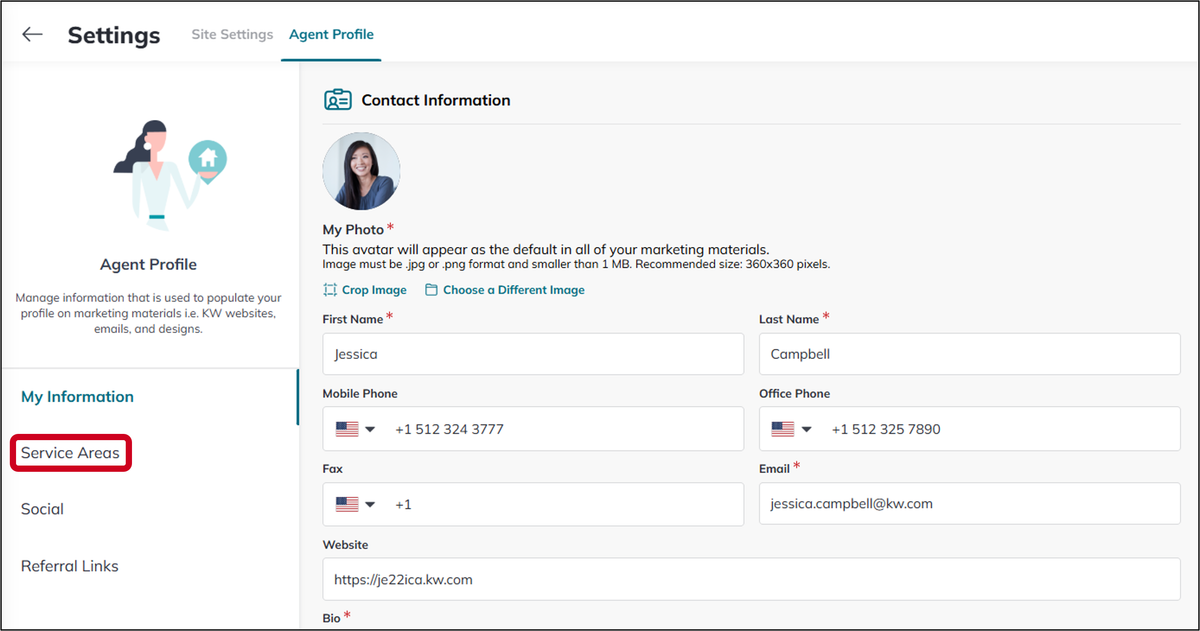
- Service Areas
- Social
- Referral Links
Access
1. Log in to https://agent.kw.com with your KW login credentials.
2. The Marketing Profile is the same, no matter which team you have selected, though the Site Settings will be different on each.
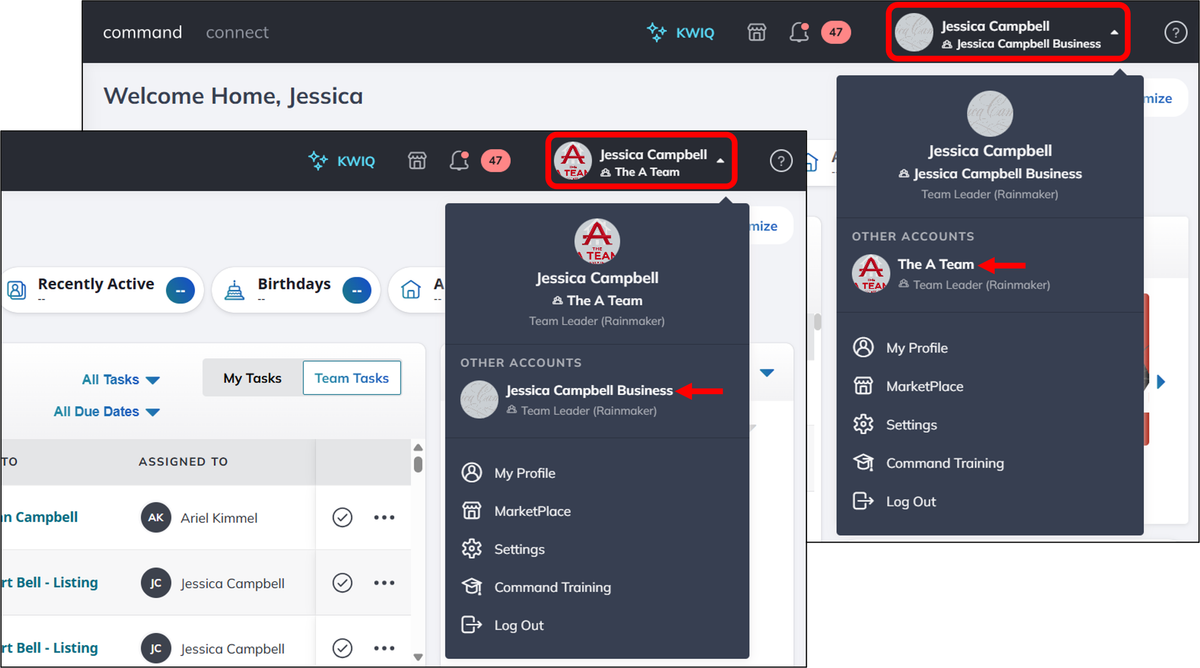
3. Click to access the Websites Applet, on the left side of the page.
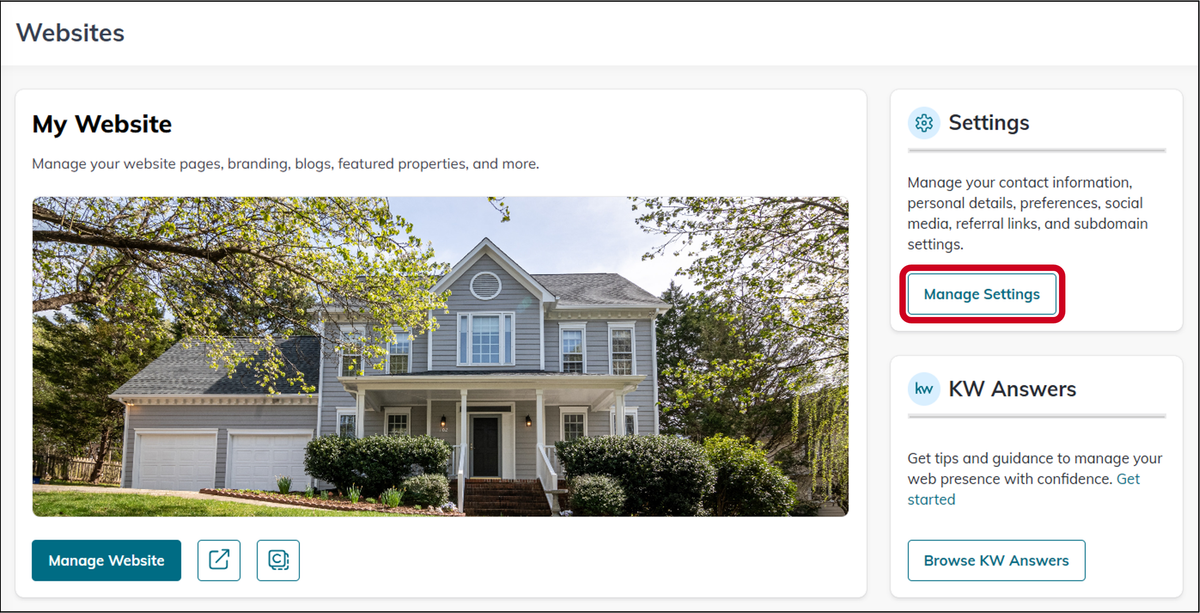
4. Click Manage Settings, on the right side of the page.
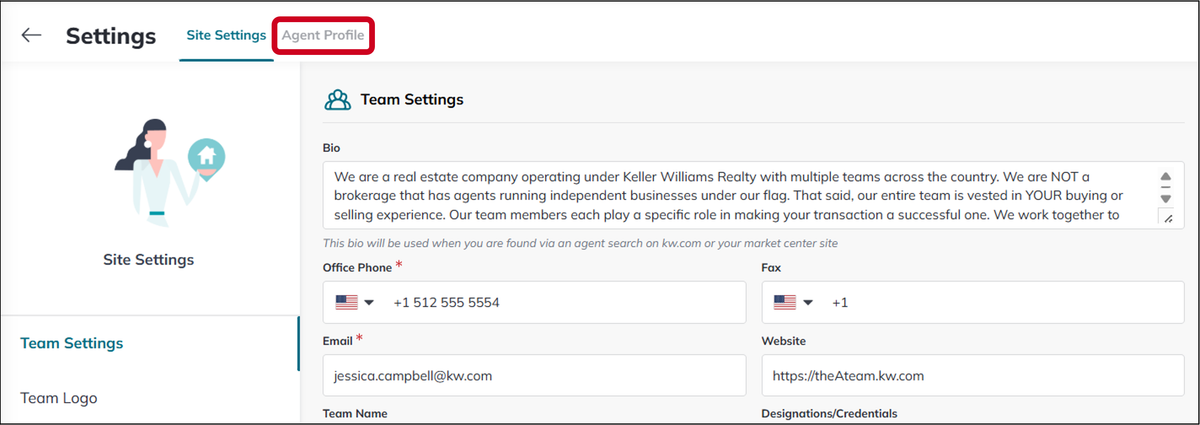
5. Click the Agent Profile tab, at the top of the page.
My Information
Contact Information
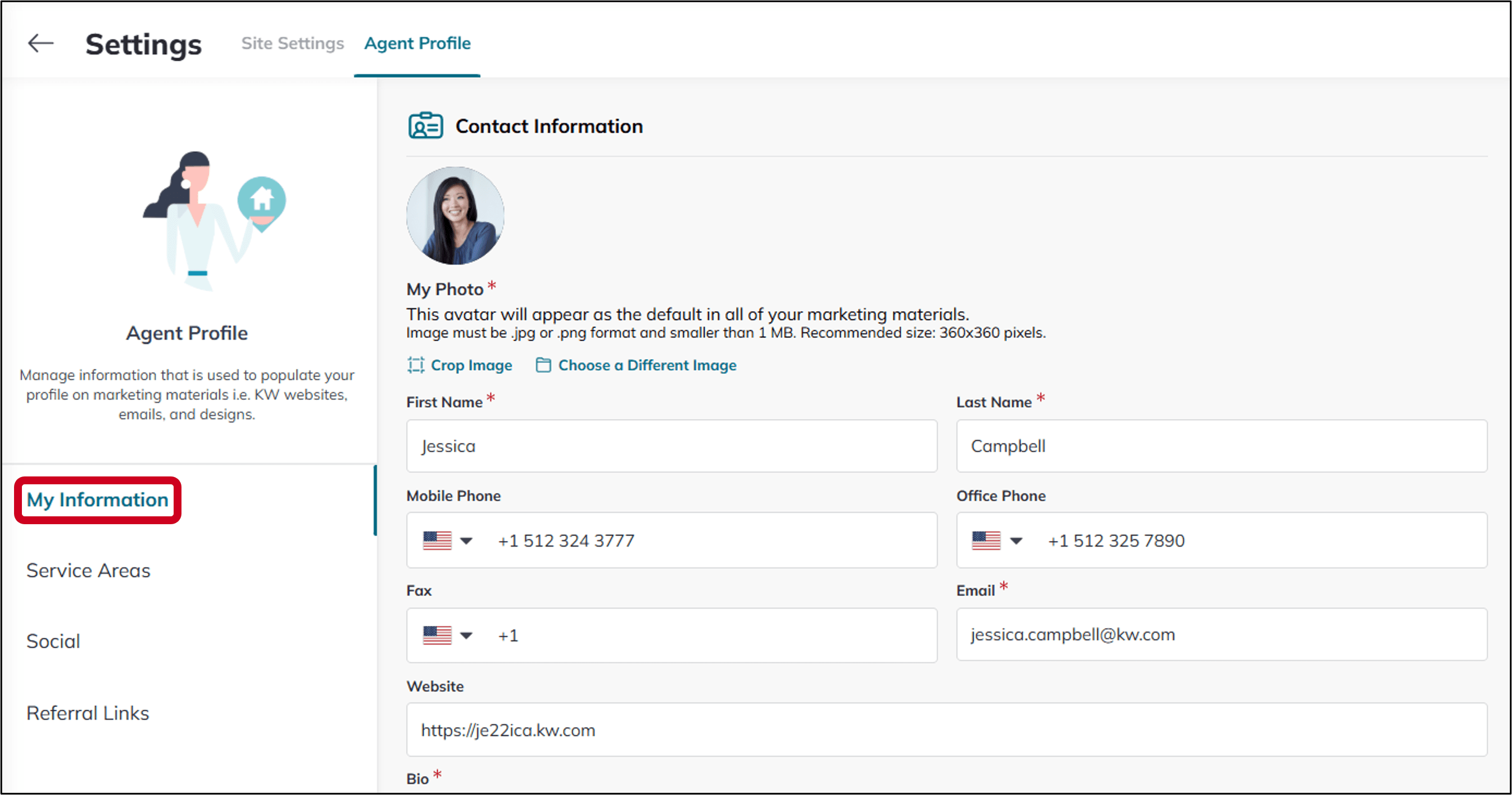
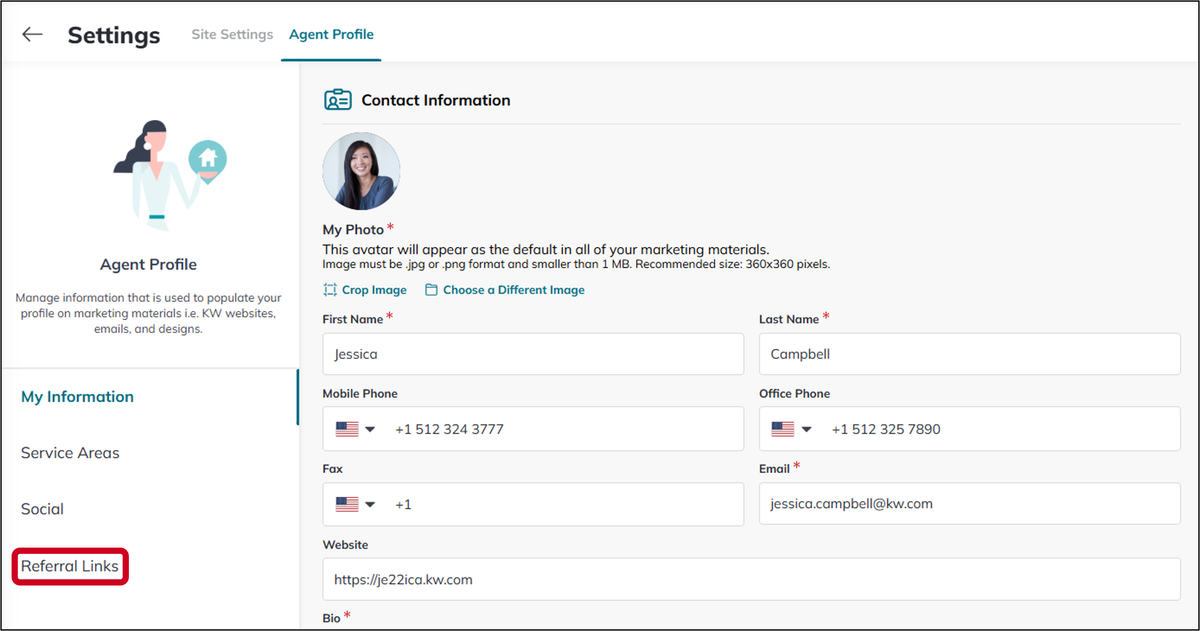
1. Click into the My Information section, on the left side of the page.
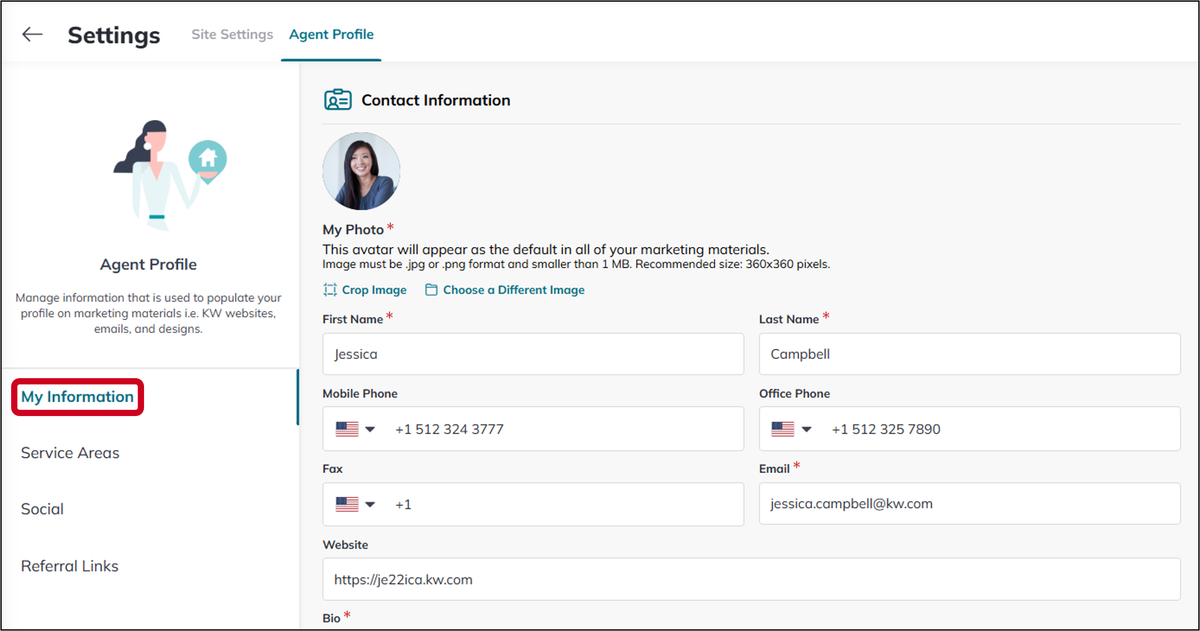
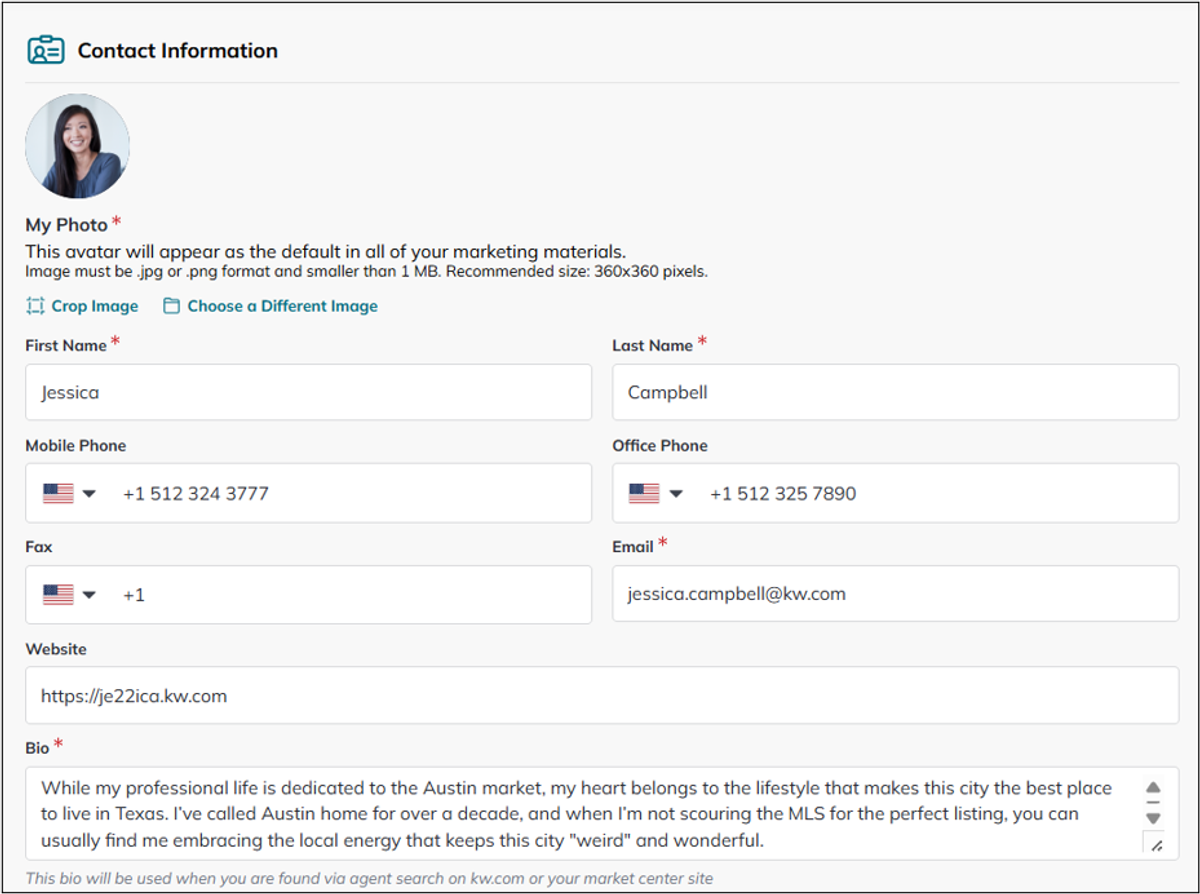
2. In the Contact Information section, add your Profile Photo (My Photo), First and Last Name, contact information, Website, and a Personal Bio.
- When you use the cropping tool for your profile photo, it will crop the image to a square. If you need to crop your photo/logo to a different shape, crop outside of the tool before adding.
- This bio is a personal bio, and will show on your public profile (kw.com, MC Site). There is another bio in your Site Settings for each team you are on where you can add more site specific information.
- If you don't have team members, these will show on the same about me page with the business bio on top and the personal bio toward the bottom.
- If you do have team members, the business bio will show at the top, and each team member will have a clickable card that will take visitors to their personal information.
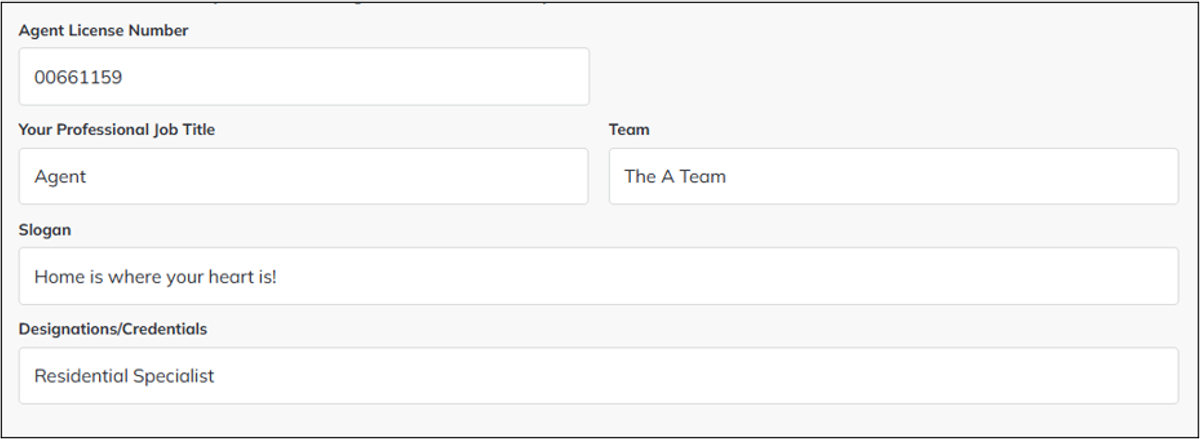
3. Below that, you have the option of entering your Agent License Number, Professional Job Title, Team Name, Slogan, and/or Designations/Credentials.
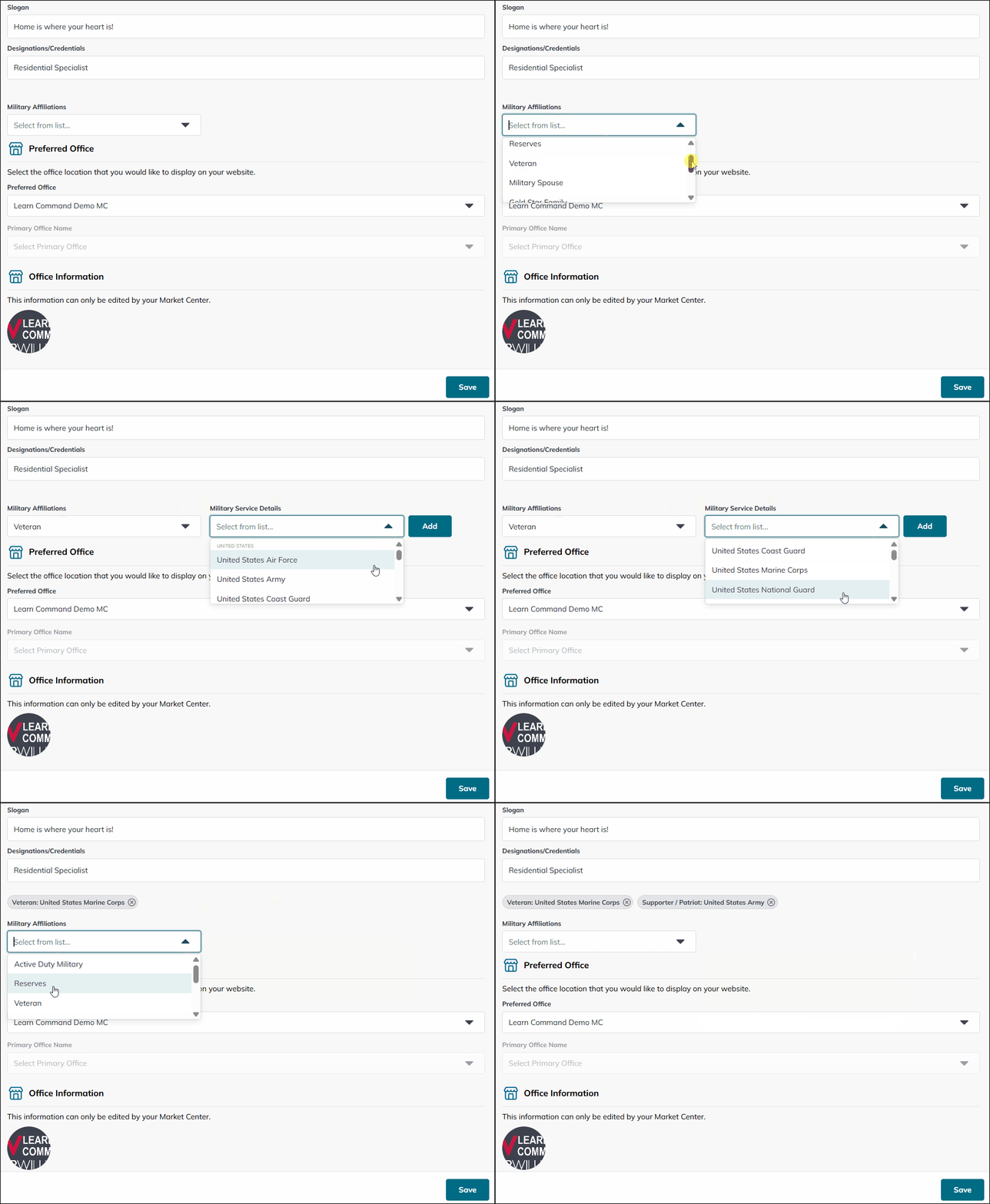
4. Next, you will see the Military Affiliations drop-down. This focuses on military service, past or present, military spouses, Gold Star Family members, and more. Once you select an affiliation, a Military Service Details drop-down will appear, where you can select the specific service, categorized by country. Use the drop-downs to select any number of combinations.
- As this is a brand new field, it hasn't been connected to any public facing profiles, but there is a Military filter that utilizes this field when agents search for referral partners in Command.
Preferred Office
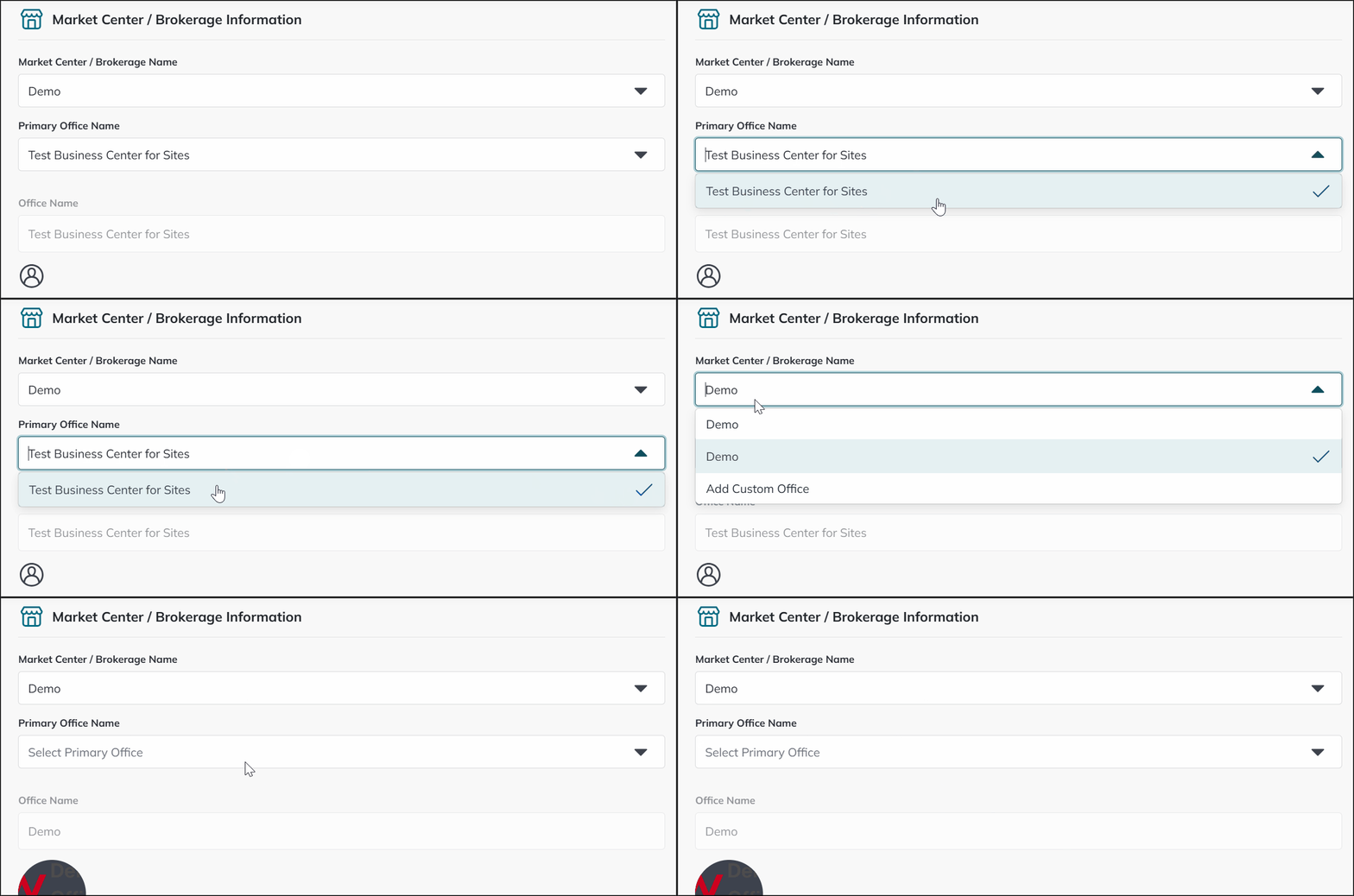
The bottom portion of this section is focused on your Market Center information. This information is automatically populated from the information we have on record about your Market Center. The Market Center / Brokerage Logo pulls from your Market Center's Marketing Profile, and will appear both at the top right of your site, and next to the contact form on the homepage. Here you have the ability to choose which Market Center is the first one shown (the others will be behind a clickable carousel), or even to choose to enter custom office info.
The office information you complete here will determine which MC is predominantly shown on the About Me page, as well as any public profiles you have (KW.com, etc.). There is a similar setting on the Agent Profile tab that controls which MC is predominantly shown on the homepage of the specific site you are editing.
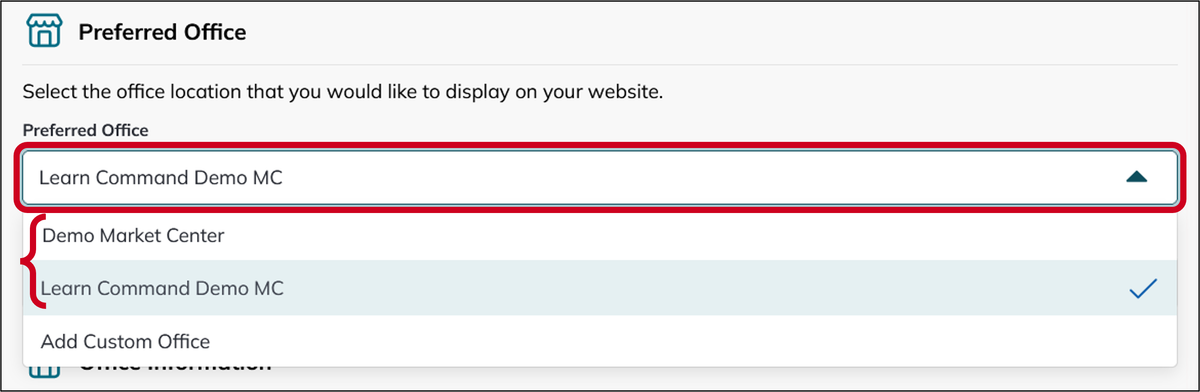
1. If you have roles in multiple Market Centers, select your Preferred Office using the drop-down. On your site, that Market Center will be the primary office displayed, though all of your Market Centers will be shown on your site (list view on your About page, and carousel next to the contact form). Click Save when ready.
- You will see a Custom Office option you can use if none of the selections work for your situation. Skip to step 3 to learn how to add custom office info.
2. If you are in a Business Center associated with your Market Center, you can use the Primary Office Name drop-down to select the Business Center information you want to show as your primary. Click Save when ready.
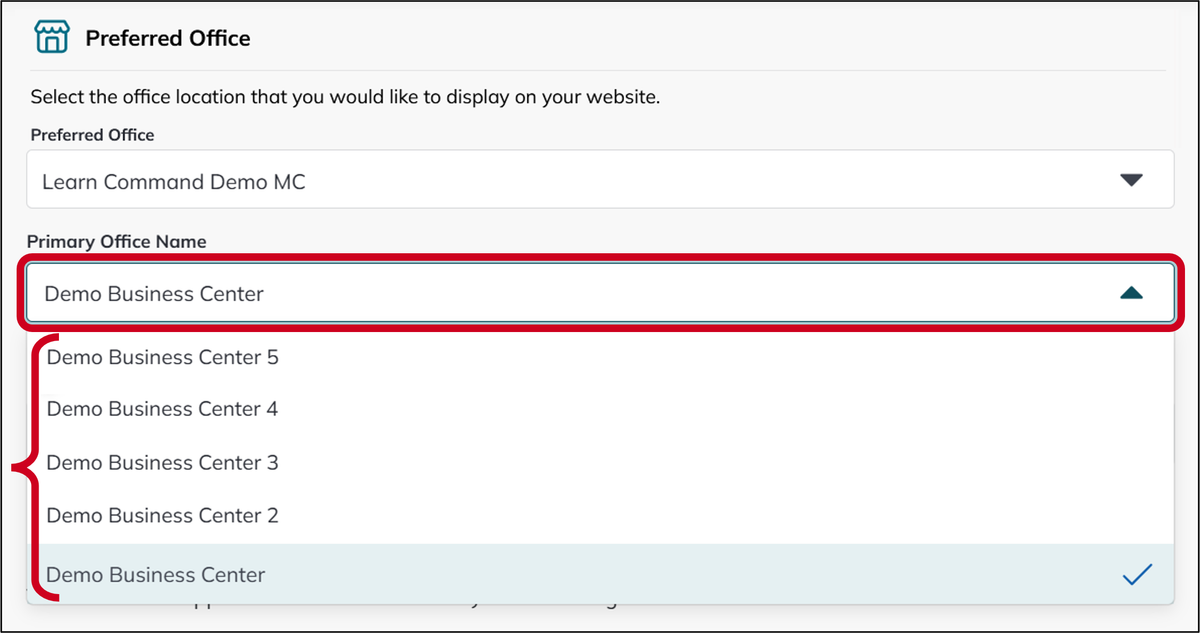
If you accidentally select a business center and need to clear it out, there is no obvious way to do this. But, if you select the Add Custom Office option, in the Market Center / Brokerage Name drop-down, it will clear the selection and you can then select the correct Market Center.
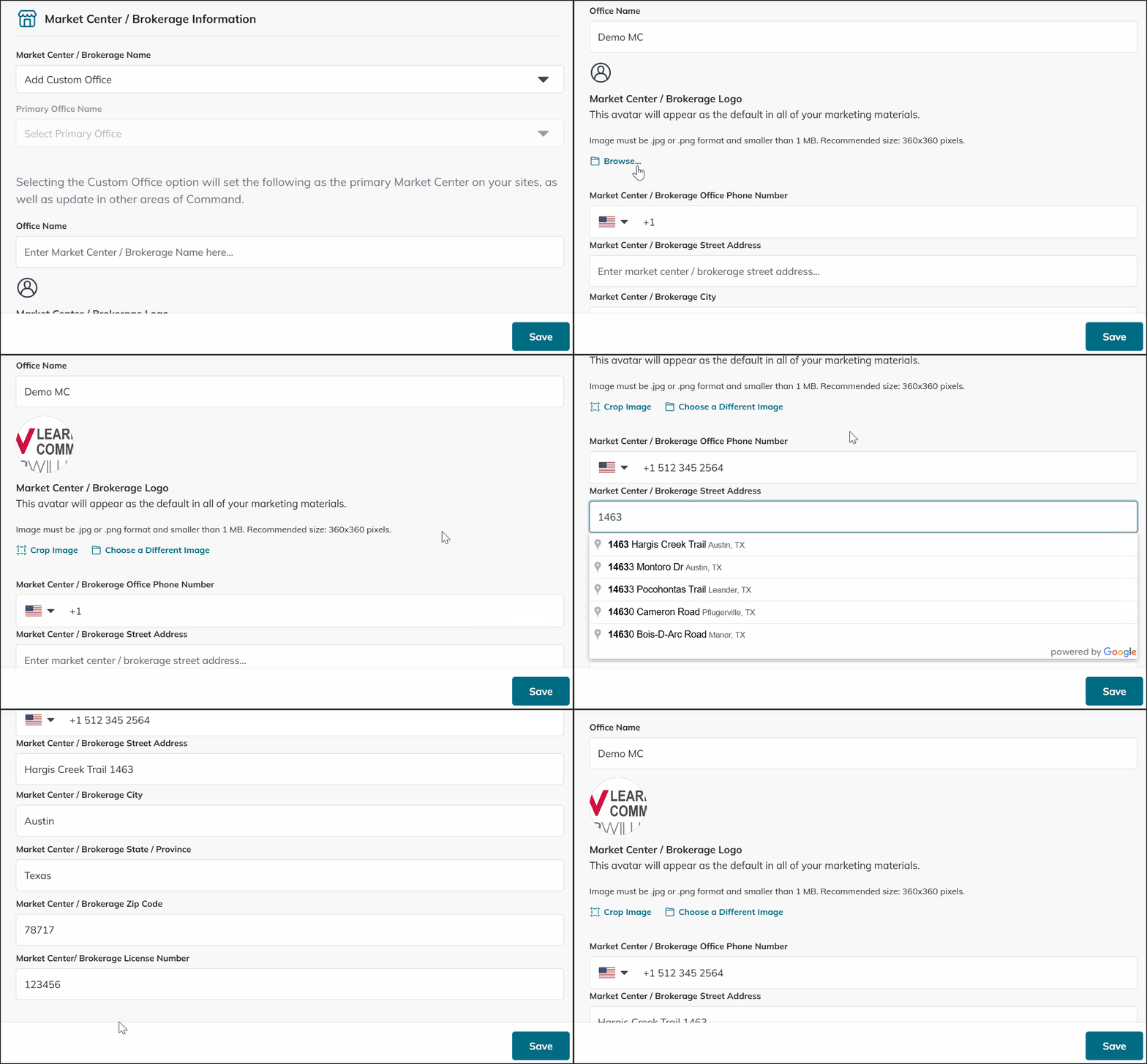
3. If you are in a special situation not covered by the options given, you can select the Add Custom Office option, in the Market Center / Brokerage Name drop-down. This lets you enter any DBA logo, and Market Center information to show on your site(s). Click Save when ready.
Service Areas
1. Click into the Service Area section, on the left side of the page.
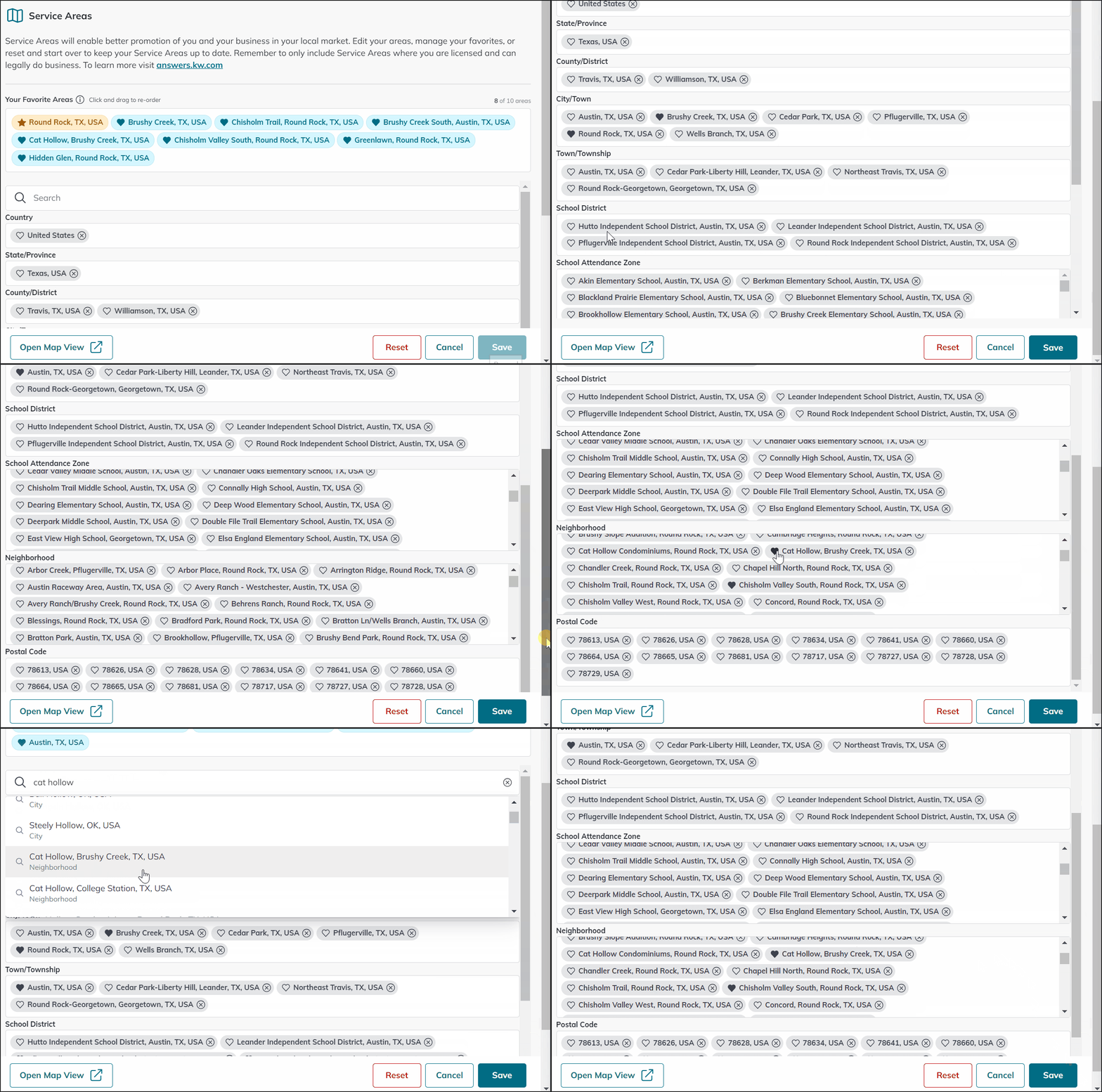
2. If this is your first time setting up service areas, you can draw up to 3 areas on a map, and then customize the individual service areas that they will be searchable by, in each search category (city, zip code, neighborhood, etc.). There is also an easy button that allows agents to use their Market Center's default location as well, if they don't want to get too granular.
In addition to selecting service areas for searchability, agents have the ability to select up to 10 favorite service areas that will display on your Agent Profile and About Me pages.
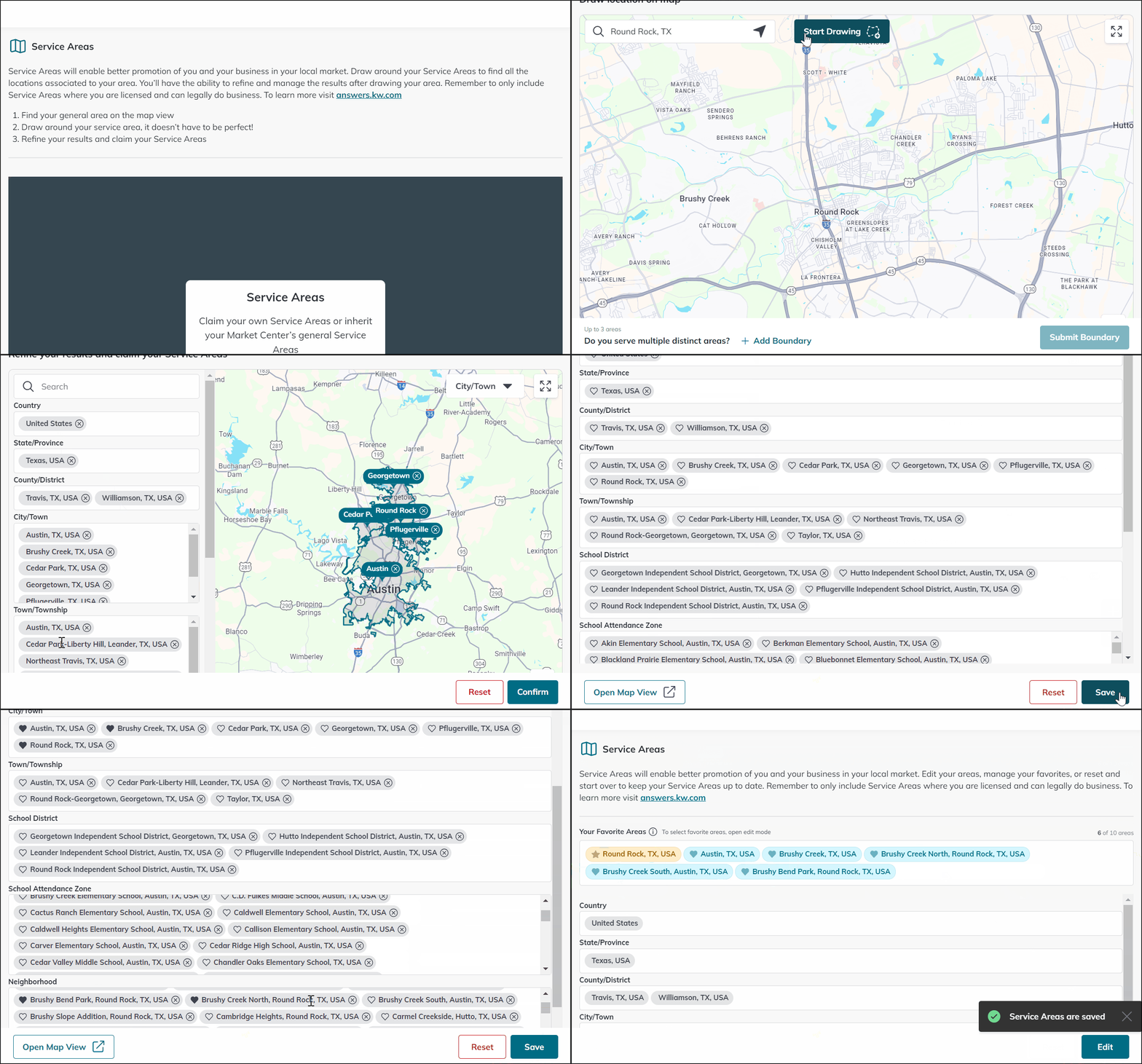
3. Once you have service areas set up, you can use the edit flow to remove any service areas you don't want to be searchable by, and you can use the search, at the top of the list, to search for and select any new service areas that you want to add. In addition, you can use the heart icon to select/remove favorite areas (maximum of 10). Once selected, you can drag and drop your favorites into the order you want them displayed on your profile and about me pages.
Social
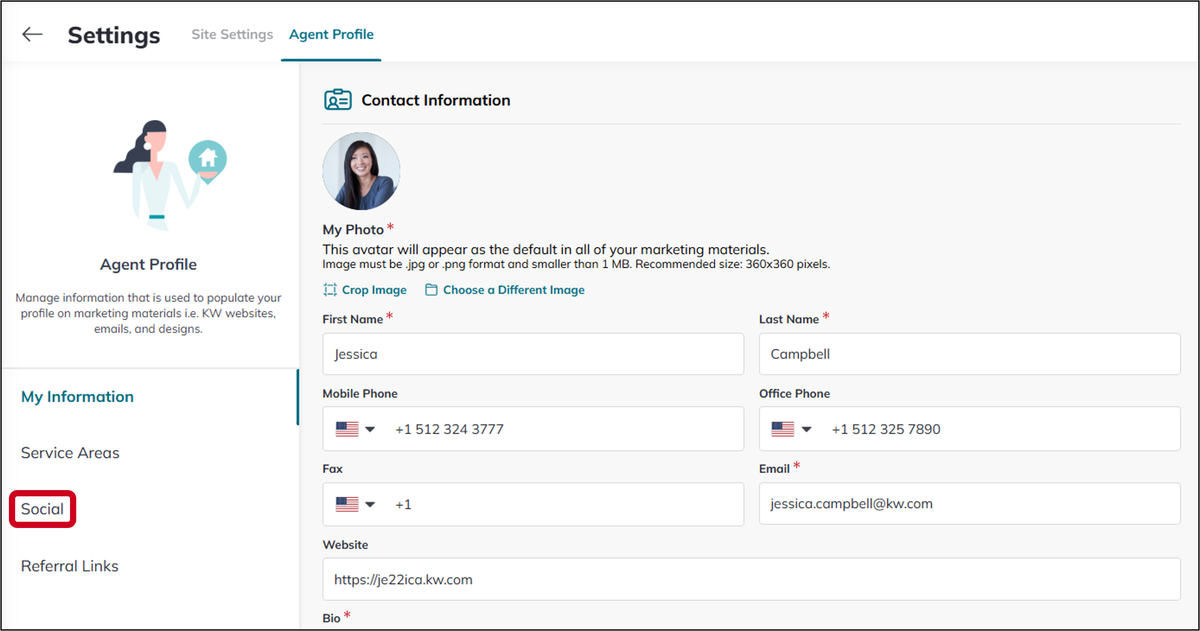
1. Click into the Social section, on the left side of the page.
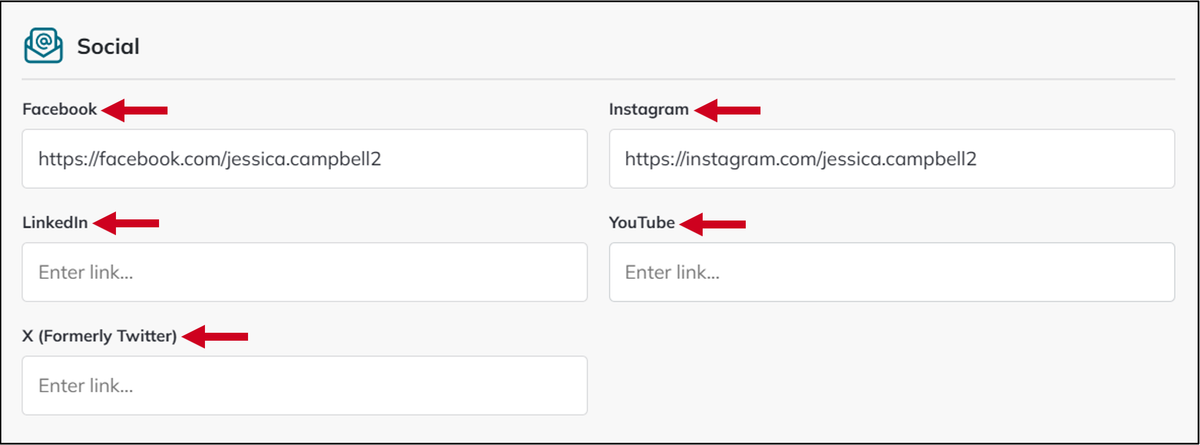
2. Add any social media profiles you want to showcase, making sure to add "https://" to the beginning of profile's web address. These will populate on your KW.com agent profile, KW Agent Site agent profile and the top right of every page of your site, so clients can easily access and connect.
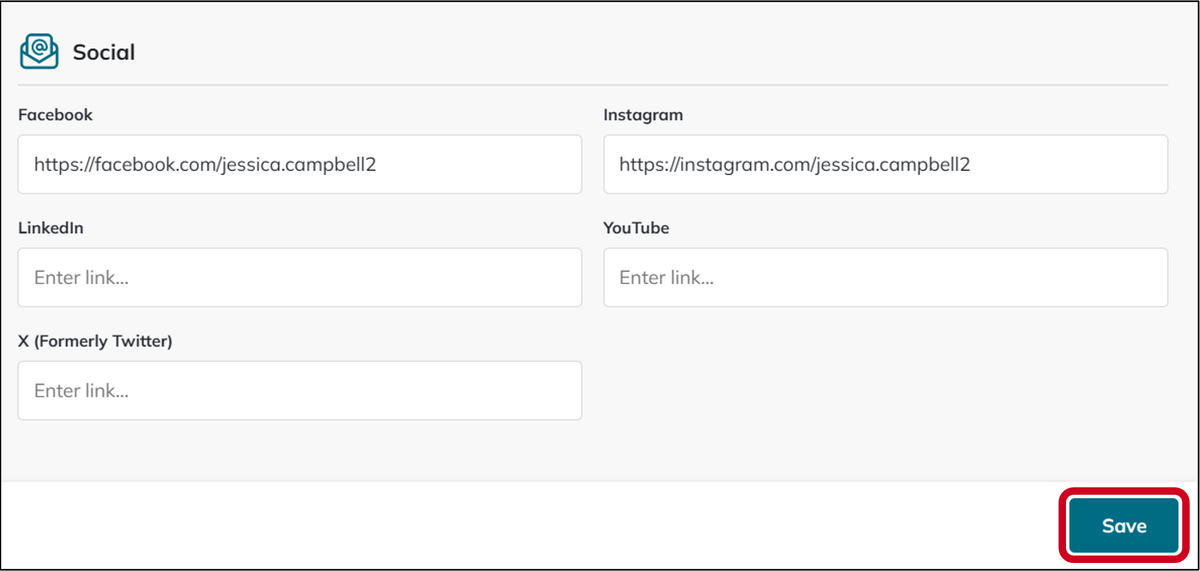
3. Click Save, at the bottom right of the page.
Referral Links
1. Click into the Referral Links section, on the left side of the page.
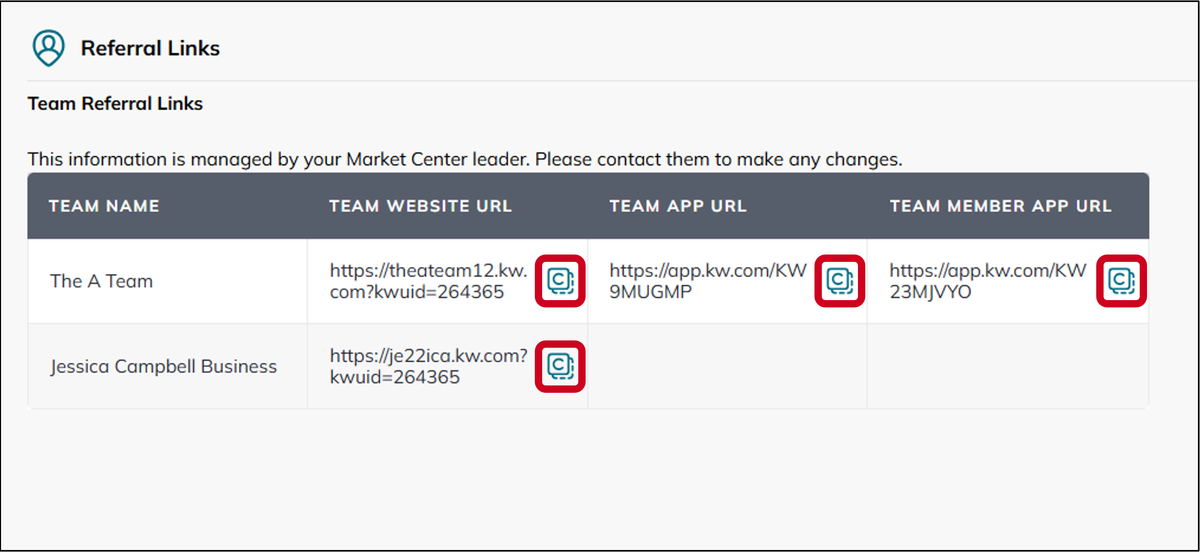
2. There is nothing to edit in this section, though you can use the copy links. For each team you are on (including your personal business), you will see a Team Referral Links section with the following information:
- Team Website URL - this is a link unique to you, which adds your KWUID to the end of the URL. When someone uses this link, you will be connected to all of the contact forms and any new leads will pull in to the team Command account, with you as the Assignee.
- Team App URL - this is a general Team App link. The Rainmaker will be notified about the new lead, but the system will use Lead Routing to automatically assign the lead to a team member. If there is no Lead Route set up to route Team Site/App leads, it will be put in the Unassigned Lead Pool.
- If you have not opted in to lead routing on your personal business team, then this link will act the same as the Team Member App URL.
- Team Member App URL - this is a link unique to you. When someone uses this link on a mobile device, they will download the KW Team App, with you as the agent selected (once they create an account and log in). You will be connected to all of the contact forms and any new leads will pull in to the team Command account, with you as the Assignee.
- KW Answers
- Command
- marketing profile
- agent site
- KW site
- profile photo
- bio
- market center
- DBA logo
- service areas
- social media
- referral links
- KW app link
- military affiliation
- veteran
- settings